Integrations · Hostaway
Connect Hostaway to Proptonomy
Create a Hostaway API key, paste it into Proptonomy, and see what is read, what is written back, how it stays in sync and how to switch it off.
What the integration does
- Read from Hostaway
- Listings and their details; reservations, including status changes and cancellations; days the calendar holds closed that no booking explains, such as owner stays and maintenance; guest conversations and every message in them; published guest reviews; and your Hostaway users with the listings each of them can access.
- Written to Hostaway
- Replies to guests, on the same Hostaway conversation, once you allow the AI to reply; dates blocked or reopened on a listing’s calendar from Proptonomy; a listing pushed from a property page with Push to Hostaway; and one webhook subscription in your account, so changes reach Proptonomy as they happen.
- Never touched
- Proptonomy does not create, change or cancel reservations, and it does not delete listings.
Your Hostaway users come in as people in Proptonomy with access to the same listings. No one is invited and no role is changed by that import.
How it stays in sync
- Webhooks, real time
- A new or changed reservation, including a cancellation, and every new guest message.
- Every 3 minutes
- Conversations with new activity, so replies your team types in Hostaway and Hostaway’s own automated messages show up too. Hostaway’s webhook only announces messages from guests.
- Daily, around 07:00 UTC
- The full sync: listings, calendar blocks, your Hostaway users, reservations and conversations.
- Around 13:00 and 19:00 UTC
- Reservations and conversations again.
- Nightly, 03:45 UTC
- Published guest reviews.
- Once a day
- A check that the webhook is still registered, which registers it again if it has gone.
Scheduled times vary by up to 20 minutes so that every account does not call Hostaway at the same moment. Each reservation sync reads every booking that ends 30 days ago or later.
New listings
Before you start
- A Proptonomy account. Create one, name your organization, and you are in. If you would rather we set it up with you, use the form on the Hostaway integration page and we open your workspace the same day.
- Admin in that organization. Only an organization admin can connect or disconnect a system. Whoever creates the organization is its admin.
- Access to Hostaway’s API settings, to create the key in the next step.
Create an API key in Hostaway
- 1
Open the API settings
In the Hostaway dashboard, go to Settings → Hostaway API (open it directly). - 2
Create a key
Click Create, name the key “Proptonomy”, and pick Proptonomy in the partner list, or Hostaway Public API if Proptonomy is not listed yet. - 3
Copy the Account ID and the key
Hostaway shows the API key once, when you create it. Copy it together with your Account ID before you close the dialog. If you lose it, create a new key.
Hostaway’s own article on this screen: Hostaway Public API, Account Secret Key.
Connect Hostaway in Proptonomy
- 1
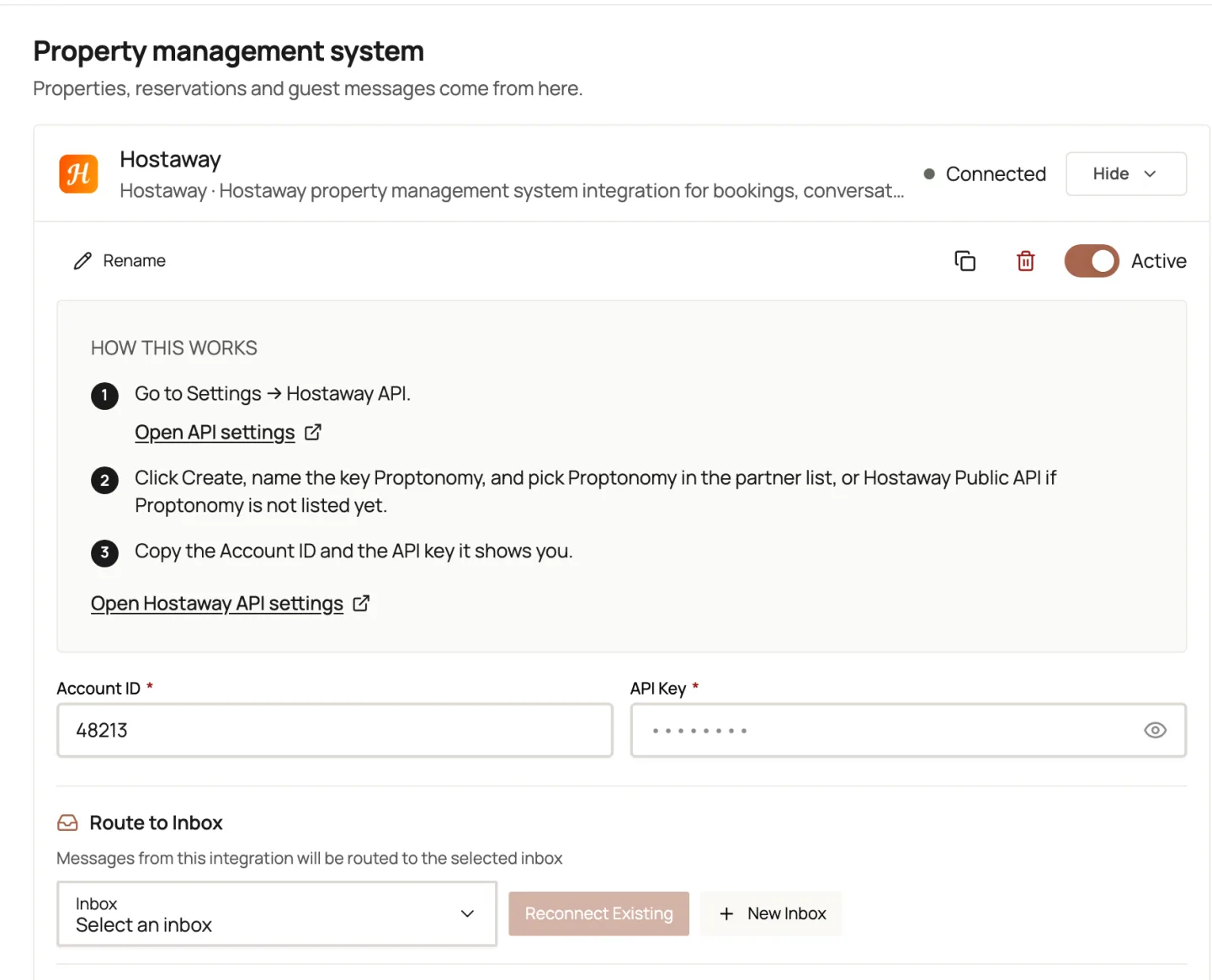
Paste the Account ID
Into the Account ID field. - 2
Paste the API key
Into the API key field. The eye icon shows what you pasted, if you want to check it. - 3
Click Connect Hostaway
The key is stored encrypted and is only used to talk to Hostaway. The first import starts at once.

The first import
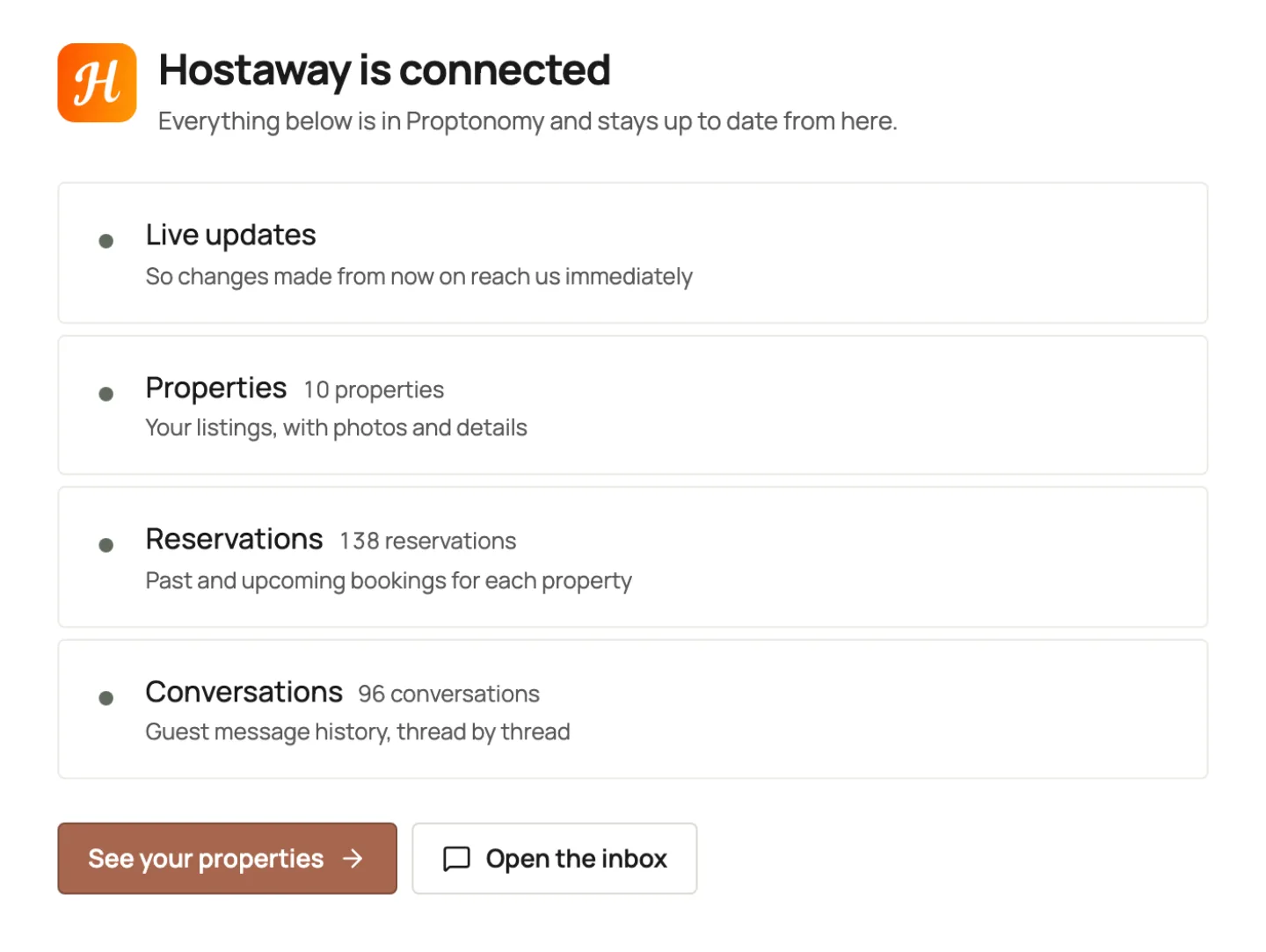
Where everything lands:
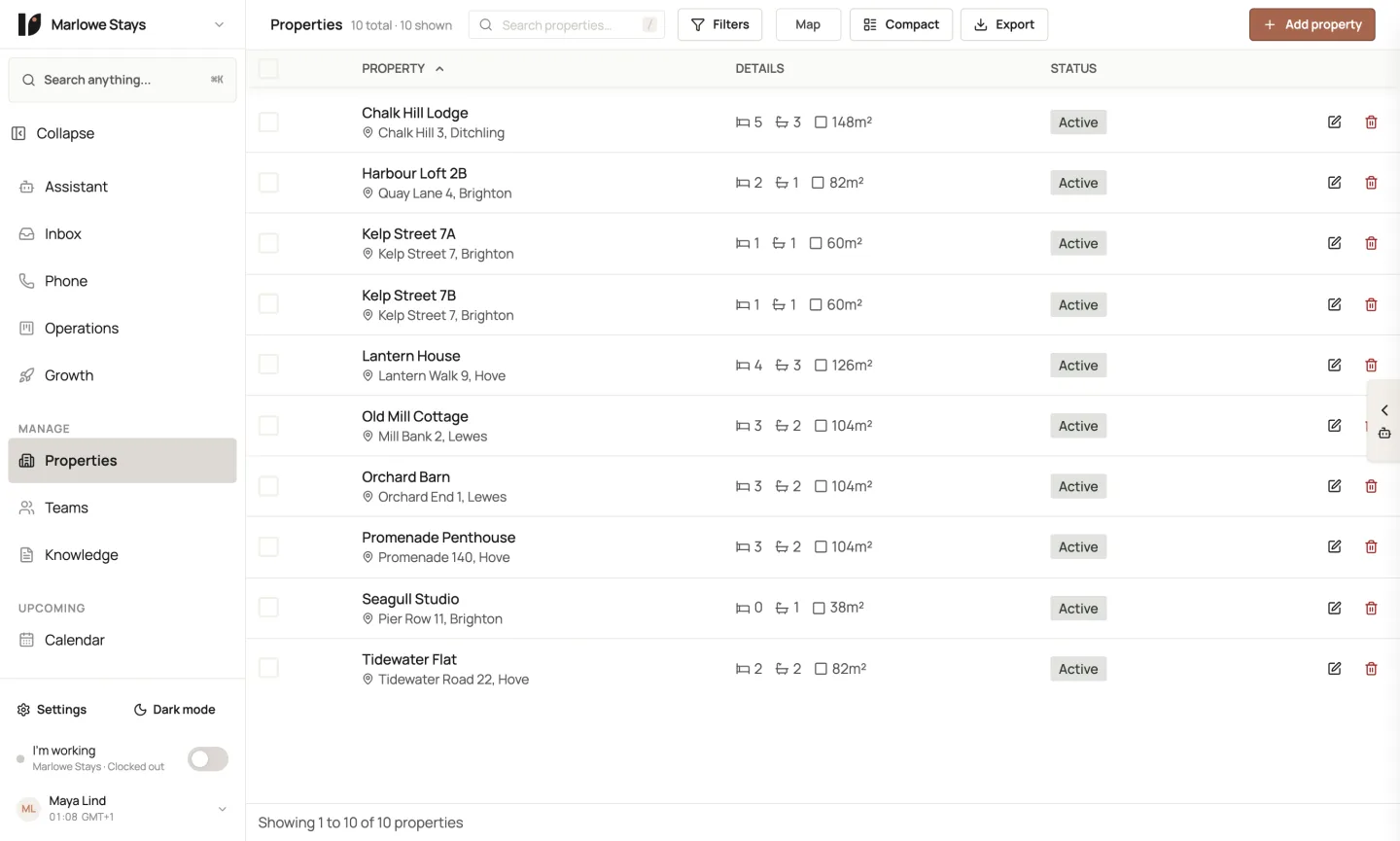
- Properties: one per Hostaway listing, under Properties.
- Reservations: on each property and on the Calendar.
- Guest conversations: in the Inbox, in your default inbox (called Guest communications in a new workspace), with the booking linked to the thread.
The connection itself is under Settings → Integrations, in the Property management system group. Open it with Manage.
Guest replies and writes
- 1
Watch it first
Leave it read-only for a few days and compare its notes with what your team actually sent. - 2
Let it reply
As an admin, open Settings → AI Agents, find the guest-facing agent, and change When may this agent reply? from Read-only (observe) to Always reply. You can also set a different policy for a single property on its page.
Replies go out through Hostaway on the guest’s existing conversation, so Hostaway delivers them the way it delivers any reply in that thread, and your team sees them in Hostaway as well.
Every write is guarded and logged
Pause or disconnect
- 1
Pause
In Settings → Integrations, open Hostaway and switch Active off. Syncing stops and every write to Hostaway is refused until you switch it back on. - 2
Disconnect
Click the bin icon on the same connection. Proptonomy removes its webhook from your Hostaway account while the key still works, stops syncing, and ignores anything Hostaway still sends to it. - 3
Revoke the key in Hostaway
In Hostaway, open Settings → Hostaway API and delete the key you created for Proptonomy. This is what guarantees the key can never be used again, whatever happens on our side.
Troubleshooting
- “We could not finish connecting Hostaway”
- Hostaway refused the Account ID or the key, and the Properties step shows Hostaway’s reason. The usual causes are a key copied with a character missing or a stray space, or the Account ID and key from two different accounts. Click Check the details, paste both again, or create a fresh key in Hostaway.
- A new listing is missing
- Hostaway does not send listing events, so a new listing arrives with its first booking or the next daily full sync. To bring it in now, ask the Proptonomy assistant in the app to sync Hostaway: it re-reads your listings and then your reservations, usually within a few minutes. You can also connect again at app.proptonomy.ai/connect?integration=hostaway with the same Account ID and key: the import runs again, updates what is already there and adds what is new, without creating a second connection.
- Messages or bookings stop arriving
- Check that the connection is Active in Settings. Proptonomy checks the webhook once a day and registers it again if it has gone, and the 3-minute message check and the scheduled syncs keep running regardless. If nothing arrives for more than a few hours, write to us: the Register Webhooks and Verify Webhooks buttons on the connection are run by Proptonomy support.
- The key was rotated in Hostaway
- Connect again with the new key. Until then, nothing can be read from or written to Hostaway.
Support
Write to hello@proptonomy.ai with your organization’s name and what you expected to see. A person answers. For Hostaway itself, visit hostaway.com.